
Securing Your Life Journal
How Orca provides you with options to secure your journaling data and easily download photos and videos or share them with selected friends.
Longevity is a top consideration when choosing the right journaling or photo app. Is this app going to be around in a year? What about five years? Am I going to be able to export my memories if I choose to leave or switch? Will my data be managed in a secure way by a dedicated team that I can trust? You want to make sure that you’re starting a new habit that you’ll be able to keep.
To ensure that Orca is both an experience you want to use for many years and a place that can safely hold your most important memories, we focus on a few main areas:
- Keeping the habit simple – At the core of Orca is a belief that simple habits are easier to keep up. We intentionally encourage shorter text, embrace photo-only memories, and prevent extra features, like Pods, from blocking the “happy path” of your daily reflection. Low friction matters especially on those days when you’re busy or stressed.
- Creating a supportive, social experience – Life isn’t a solo adventure, so your journal shouldn’t be isolated from all the people you care about. Orca Pods allow you to share selected memories, including throwbacks like “1 year ago” posts. Sharing positive memories can deepen relationships and reinforce the journaling habit. It’s not just your memories, it’s our memories.
- Continually improving – Apps without consistent updates and improvements are bound to fade into obscurity. You might be one iOS or Android update away from errors that make an outdated app unusable. Orca is always adding new features, like Waves, and keeping up with the latest OS trends, like Liquid Glass.
- Keeping your memories secure – From encryption to authentication, developers need to ensure that your data is safe, especially in an app like Orca with optional social features. Many smaller apps treat this like secondary work but we know that it’s key to building trust. I have thirteen years of my own memories in the app and would be devastated if anything happened to them.
- Promising data portability – To fully trust an app, you need to know that your data can come with you when and if you choose to leave. Orca provides ways to periodically create exports of your data in PDF or CSV as well as options to directly download individual memories, photos, and videos. We aim to keep you in the app by providing a delightful experience, not by making it impossible to leave.
The last one, portability, has been our focus for a couple of the most recent updates. It’s an important one too. No matter how long Orca has been around (13+ years) or how much trust has been built between the developer (me) and the consumer (you), it can be hard to imagine an app being around for another ten years. If I wasn’t able to work on Orca for some unpredictable reason, what happens to everyone’s accounts and data?
Portability through data exports and media downloads provides a safety net for your precious memories. Plus, with all the new AI tools available, there’s even more the average person can do to gather insights from their own information. (Please be careful about dropping your data directly into an AI tool!)
Exporting Your Journal Data
Regularly ensuring that you have a backup copy of your journal data can provide peace of mind. It’s an extra layer of insurance for your life memories. At the same time, exporting data opens your journal up to new security vulnerabilities. Once you’ve downloaded your data as a file, it’s become a very simple artifact to copy or search.
Potential Security Issues
In the original version of Data Exports, each new export would kick off a background task that would generate the PDF or CSV file (with images in separate zip files) and then email you the files to download. It was simple, easy to work with, and generally reliable. Our philosophy is to start with the simplest thing that works reliably and improve as we gather feedback.
This process introduced a few security issues that we did our best to minimize:
- Email typo troubles - On rare occasions, users sign up for Orca with a typo in their email. These cases are always fixable, but any exports sent to an erroneous email address could mean a stranger with your entire journal. To reduce that risk, we show a confirmation popup during export creations showing you the email address that the message will be sent to.
- Easy target for hacked emails - Having your email hacked can be devastating. Depending on how long a hacker has access, they can do more and more harm. CSV and PDF files in your archived messages with your entire life journal are a serious problem. Earlier this year, we introduced expiring links to downloadable files that no longer work after a week. Any old email in your inbox is no longer an easy target.
- Shared inboxes or family computers - Like it or not, we don’t live in a world of perfect privacy. Your partner might hop in your email to check a flight confirmation, your parents might check it for school assignments, or your roommate could be snooping for no good reason. Without a second layer of authentication, our email export solution fell short here.
After some recent conversations with customers, it became clear that maybe the email solution needed a bit more thought, instead of adding on minor updates to avoid problems. Luckily, there’s never been a breach of export data, but we always want to stay ahead of potential issues.
A Safer, Persistent Space for Exports
This past Spring, we added an extra layer of security to all photos and files in Orca, though this created a new issue for emailed exports: if you waited too long to download the files, you’d have to redo the whole export. That’s a waste of time and resources for all of us! On top of that, some email clients flag links to files as spam. Some of these emails were never being delivered in the first place.
These problems added up to a clear motivation to finally rethink a more ideal solution for journal exports. Build a new page on our recently refreshed okorca.com website to manage all of your exports, current and past.
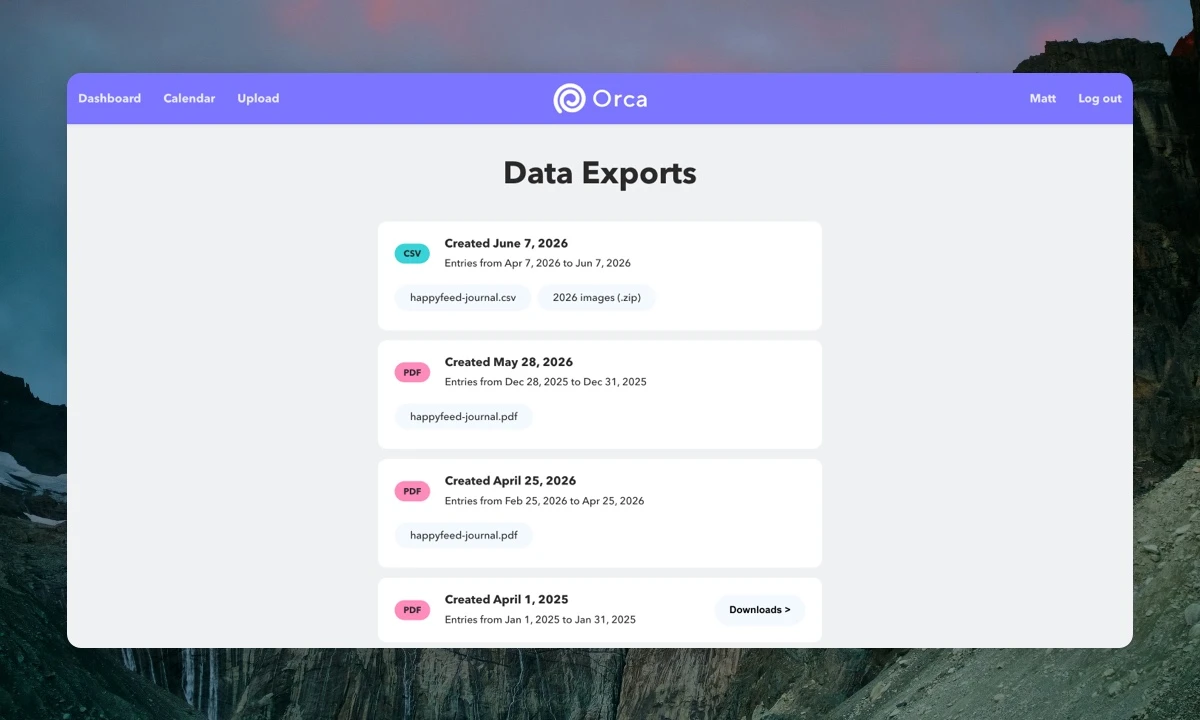
- Simplicity - Everyone can now access their data exports from the same location. This means that we can simply email you a reminder pointing to a generic okorca.com/data-exports page. No suspicious URLs in emails or personal data sitting in your email archives.
- Authentication - The new Data Exports page on the Orca website requires you to log in to your account to access your journal backups. This solves the shared computer issue by adding an extra layer of security. Download links still have an expiration date, regenerated on each page refresh.
- Export Status - Generating journal backup files can take up to an hour, so users often wonder, “did the export fail or is it still processing?” The list view on the new page makes it clear if an export is ready or processing.
- Full History - To keep files manageable, we typically recommend exporting your data in year chunks. Any longer than that can cause the PDF maker to fail. With the Data Export page, you can see all your exports with their time ranges. Perfect for an annual backup.
This might seem like an incredibly in-depth post for a single feature, but I wanted to take the chance to illustrate how we think about data security at Orca. Smaller apps often skip over these details in favor of growth and revenue, but security is a real priority for our product.
How Orca Makes Your Data Secure and Portable
Data exports are just one of the many ways that Orca gives you control over your life memories. We want to be sure that you’re always able to securely access any past memory, download media files, and share these moments safely and easily. Access is a big piece of the puzzle - what’s the point of a life journal with entries you never revisit? Many of our features focus on reconnecting you with your older entries, like the happiness jar, throwbacks, and monthly recaps.
Below is a quick FAQ of how we handle media, sharing, and data portability in Orca.
Media Storage
At its core, Orca is a photo sharing app. We leverage native technologies on your device to make it easy to upload, explore, share, and download image and video files. Orca also integrates with the photo library on iOS and Android to backup photos in a reliable way.
How can I save photos and videos directly from Orca?
There are two ways to save photos and videos from Orca. The first is to open a memory, tap the photo to expand it, and use the Download button to save directly to your photos.
The second method is to use the Share button when viewing a memory. This will bring up an option to share the memory as raw text and media files. You can send these directly to yourself or to a friend.
Can Orca connect to my Photos app?
Most of the photos you attach to your memories will probably already exist in your photo library. Orca connects with the unique ID so it can efficiently fetch photos locally - giving it a much faster feel than downloading from an external storage option.
If you take a photo inside the app, you can toggle an option in your settings to automatically save all new photos and videos to a folder in your library.
Are photo files stored in a secure way?
The safest way to handle photos would be to keep them on your device, but the unique sharing features in Orca and cross-platform support require a layer of storage. All image files require an authenticated account to access and can only be viewed by the owner, unless shared in a Pod. Image URLs are signed with short expirations to avoid long-lived access to your private photos via links.
Photos and videos are backed up frequently to avoid irreversible accidental deletions.
Sharable Artifacts
Easy access to photos and videos is a good base, but Orca goes further by providing options to share memories both inside and outside of the app. Whether it’s a memory’s raw text and photos or a mashup movie you create from a week’s worth of posts, we make it delightful to send your life to friends and family.
How can I share with groups inside the Orca app?
Pods are groups in Orca that allow you to share selected memories with your friends or family. When creating a new memory or viewing an old one, you can open the Pod selector to toggle the groups you’d like to share with. By long-pressing on a Pod, you can turn on auto-share too. Not for everyone but perfect for sharing all your moments with someone close, like within couples.
How can I share photos and memories outside of the app?
You can share memories outside of the app as well. The moment screen has a share button that brings up a drawer where you can select between three options – share a screenshot image, share the raw text and media files, or share a unique URL generated for the post. Screenshots are perfect for sharing on social platforms, while the raw text could be better for messaging friends. The URLs are portable and give you an easily sharable, lightweight artifact.
Can I create mashups or collages from my memories?
Yes! The iOS version of Orca has a mashup movie maker that can be used for a given week, month, or year of memories. Choose from all your photos and videos from the time period and turn them into a flip-book video. You can control the speed and aspect ratios to make the right video for your use case.
Orca Plus and Data Exports
Orca currently requires a Plus subscription to generate data exports. We made this decision because exporting data is an expensive action! A separate, more powerful server is needed to generate PDF documents with all your photos due to memory requirements. Of course, Orca Plus comes with a 7-day free trial, so if you ever need to download your memories without paying $3.99, you can test the subscription and cancel before the end.
Thank you for reading and please reach out if you have questions, concerns, or recommendations about how Orca handles data security. Improving the app is more than just adding new features, it’s occasionally revisiting and hardening our previous work.
June 18, 2026

Monthly Recap Movies
Generate mashup movies from your journal photos and videos at the end of every month, available on iOS only

Private Instagram Alternative
How a group photo sharing app based on journaling can be used as a private social network

Best Journaling Apps, iOS 26 Support, Video
Featured in "Best Journaling Apps" in the App Store, design updates for iOS 26, and major improvements to video support on Android